In the fast-paced world of digital journalism and graphic design, speed is everything. Whether you are preparing a featured image for a news portal or designing a professional advertisement, removing a photo’s background is a task we perform daily.
Gone are the days when you needed complex software like Photoshop for basic edits. Windows 11 now comes equipped with powerful AI tools that make background removal as sharp as a blade and incredibly fast.
Here are the best, safest, and most effective ways to remove backgrounds directly on Windows 11.
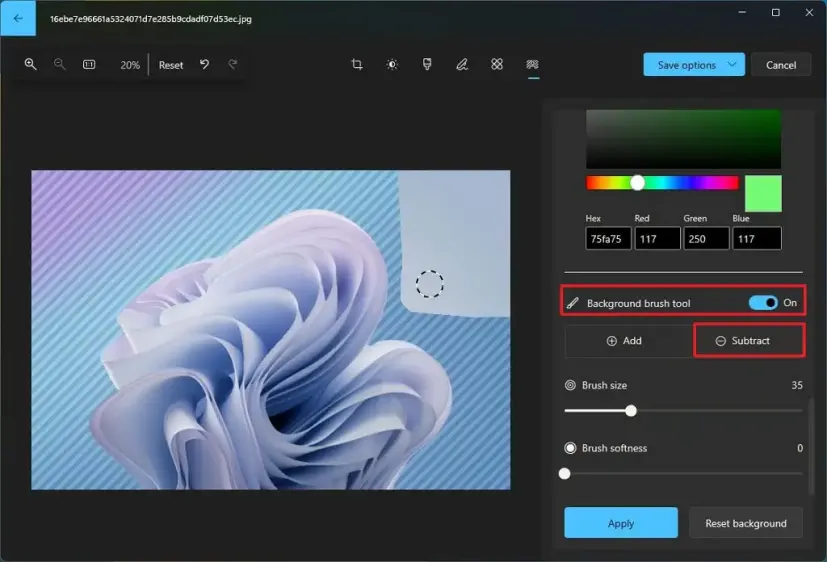
1. The Windows 11 Photos App (Built-in AI)
The updated Photos App in Windows 11 is now a hidden gem for editors. It uses Artificial Intelligence to distinguish the subject from the background instantly.
- How to do it:
- Open your image in the Photos App.
- Click the Edit Image icon (or press
Ctrl + E). - Select the Background tool from the top menu.
- Click Remove. The AI will instantly strip away the background.
- Save the file as a PNG to maintain transparency.
2. The New Microsoft Paint
Microsoft Paint has received its biggest upgrade in decades. It now features a dedicated “Remove Background” button that rivals professional tools.
- Why use it? It is extremely lightweight and handles edges surprisingly well, even with complex subjects.
- The Process: Simply open your photo in Paint and click the Remove Background icon in the “Image” section of the toolbar. One click, and you’re done!
3. Microsoft Designer (For Professional Content)
If you want to take your editing further and create social media posts or “Embossed” style graphics, Microsoft Designer is the way to go. It is a web-based tool integrated with Microsoft’s ecosystem, making it much safer than random third-party websites.
- It allows you to remove the background and immediately place your subject into a new design template, perfect for quick news banners.
Pro-Tips for Better Results
- Safety First: Avoid uploading sensitive photos to unknown “free background remover” websites. They often store your data. Using built-in Windows tools ensures your files stay private.
- The PNG Rule: Always save your finished work in PNG format. If you save it as a JPG, the transparent area will turn back into a solid white block.
- Lighting Matters: AI tools work best when there is a clear contrast between the person and the background.
Aside from Microsoft Paint and the Photos App, here are the other powerful Windows-based tools for removing backgrounds. These are perfect for your printing business and news portal because they offer high precision and safety.
1. Microsoft Clipchamp (Built-in Video & Photo Editor)
Windows 11 now includes Clipchamp as its official video editor, but it has a secret: its AI background remover is incredibly accurate for photos too.
- How to use: Open Clipchamp, import your image, and drag it to the timeline. Right-click the image and select “Remove Background.”
- Why it’s great: It uses advanced AI that handles difficult edges (like hair or fur) much better than standard tools.
2. Adobe Express (Available in Microsoft Store)
Since you are a graphic designer, you’ll appreciate the quality of Adobe. You can download the Adobe Express app directly from the Windows Store.
- The Process: It has a “Quick Action” button specifically for background removal.
- Why it’s great: It provides professional-grade results and allows you to download the image in high resolution without losing quality—essential for your Photo Frame prints.
3. Microsoft PowerPoint / Word
It sounds surprising, but if you have Microsoft Office installed, it has one of the oldest and most reliable background removal tools.
- How to use: Insert your picture, go to the Picture Format tab, and click Remove Background.
- Why it’s great: It allows you to manually “Mark Areas to Keep” or “Mark Areas to Remove.” This gives you total control if the AI misses a spot.
4. Microsoft Designer (AI Design Suite)
This is Microsoft’s newest AI tool (integrated into Windows 11 and Edge).
- The Process: You can simply upload a photo and tell the AI “Remove the background,” and it does it instantly.
- Why it’s great: Once the background is gone, you can immediately add 3D effects, shadows, or text to create a news banner for Onlinepatra or an advertisement for Hamro Solutions.
Summary Checklist for Your Business:
| Tool | Best For… | Quality |
| MS Paint | Quick, simple objects | Good |
| Adobe Express | Professional Printing / High Res | Excellent |
| Clipchamp | Complex edges (Hair/Detailed) | Very High |
| PowerPoint | Manual control / Specific parts | Custom |
Pro-Tip: For your Photo Frames, always save the final result as a PNG to keep the background transparent. If you save it as a JPG, Windows will automatically add a white background again.