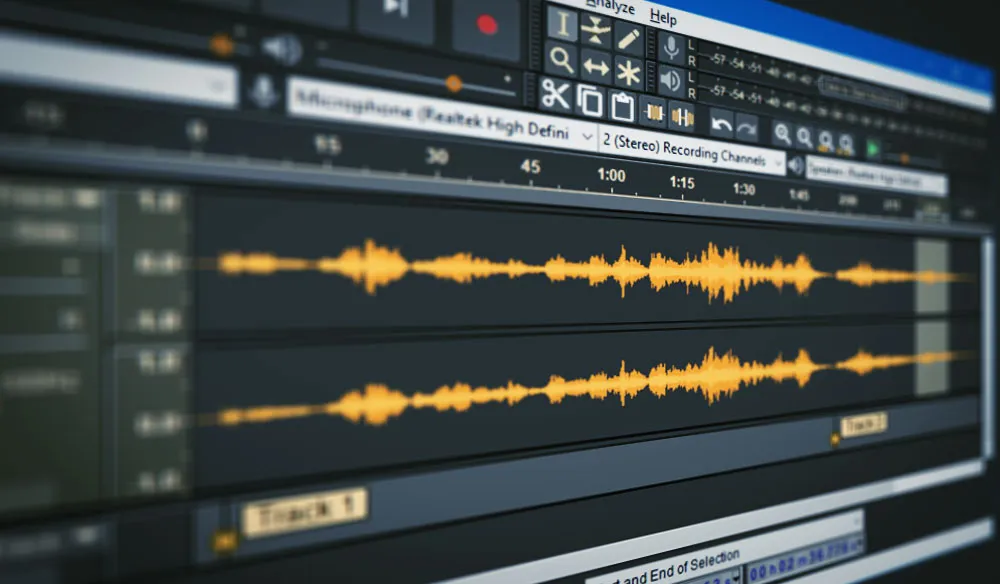
Audacity is an easy-to-use, multi-track audio editor and recorder for Windows, macOS, GNU/Linux and other operating systems. This page will guide you through the download & installation process.
Downloading through the Microsoft Store
Audacity is available from the Microsoft Store.
- Go to the Microsoft Store website.
- Click Get in Store App.

- The Microsoft Store app will open. Click Install to install Audacity.

- When Windows asks you if the installer may make changes to the system, click Yes.

Audacity is now installed. You can start Audacity from the start menu.
Downloading from the Internet
- Head to the download page: https://www.audacityteam.org/ and click the blue download button.
- If prompted, click Run or Save.
- If you clicked Save, head to your downloads, locate the Audacity installer and double-click it.
- In Windows 11 it is possible that you get a warning about Audacity being a non Microsoft-verified app. Click Install anyway.

Windows 11 warning when running Audacity installer
- When Windows asks you if the installer may make changes to the system, click Yes.
- Select the language to use during the installation and click OK.

Select the language to use during the installation
- In the Welcome page click Next.

Welcome page – Click Next
- In the Information page you will links to learn more about Audacity and its license. Click Next to proceed.

Information page – Links to learn more about Audacity and its license
- In the Select Destination Location page you can select a different folder to install Audacity using the Browse… button or simply use the recommended destination. Click Next to continue.

Select the folder to install Audacity
- In the Select Additional Tasks page you can choose that the installer adds a shortcut to Audacity in your Desktop.
- If you have installed Audacity previously you will have the option to Reset Preferences.

Select if you want to create a shortcut to open Audacity
- Verify your choices and click Install

Verify your choices and click Install
- Wait a few seconds until the setup process completes.

Wait until the setup process completes
- Click Finish to close the installer and Launch Audacity

Click Finish to close the installer
macOS
- Head to the download page: https://www.audacityteam.org/ and click the blue download button.
- If prompted, click Save.
- Once the download has completed to your Downloads folder, double-click the DMG file to mount it.
- Drag the Audacity.app icon rightwards onto the “Applications” folder shortcut.
- You can also drag Audacity out of the DMG to any other location. You need the administrator password to copy Audacity to “Applications”.

- Launch Audacity.app from /Applications or from your chosen location. Note: Do not double-click the “Audacity” icon in the DMG to launch Audacity from there.
- Once the program has opened press “OK” to start editing!
- Additionally, you may check the “Don’t show this again at start up” prompt.

Linux
Downloading and installing using an AppImage
- Head to the download page: https://www.audacityteam.org/ and click the blue download button.
- Make the downloaded AppImage runnable. To do this, you can right-click the file -> Properties -> Permissions or run the following command in the terminal:Copy
chmod +x <path to your Audacity.AppImage> - Double-click the AppImage to run Audacity.
Note: If you have trouble opening the AppImage, try installing libfuse2. Exact steps for various distributions can be found at
Using a package from a repository
Your Linux distribution (for example Ubuntu, Fedora or Debian) may have an Audacity package as part of the repository. This version is typically older than the latest AppImage, but may be better integrated into your distribution.
To install Audacity through the repository, use the Software Center, App Store or similar software on your computer. Alternatively, you can try the following commands:
- Ubuntu, Debian, Pop_OS!, Linux Mint:
sudo apt install audacity - RHEL, Fedora:
sudo yum install audacity - Arch Linux:
sudo pacman -Syu audacity
Repository packages are maintained by the community, not by the Audacity Team.
Using Flatpak or Snap
Community-maintained Flatpaks and Snaps are available from Flathub and Snapcraft, respectively.
Nice post. I learn something more challenging on different blogs everyday. It will always be stimulating to read content from other writers and practice a little something from their store. I’d prefer to use some with the content on my blog whether you don’t mind. Natually I’ll give you a link on your web blog. Thanks for sharing.
Your point of view caught my eye and was very interesting. Thanks. I have a question for you.
I don’t think the title of your article matches the content lol. Just kidding, mainly because I had some doubts after reading the article.
Your point of view caught my eye and was very interesting. Thanks. I have a question for you.
I don’t think the title of your article matches the content lol. Just kidding, mainly because I had some doubts after reading the article.
I don’t think the title of your article matches the content lol. Just kidding, mainly because I had some doubts after reading the article.
Thanks for sharing. I read many of your blog posts, cool, your blog is very good. https://www.binance.com/join?ref=JW3W4Y3A
**insuleaf**
InsuLeaf is a high-quality, naturally formulated supplement created to help maintain balanced blood glucose, support metabolic health, and boost overall vitality.
**boostaro**
Boostaro is a purpose-built wellness formula created for men who want to strengthen vitality, confidence, and everyday performance.
**citrus burn**
CitrusBurn is a Mediterranean-inspired thermogenic formula created to support a naturally slower metabolism, encourage efficient fat utilization.
**nativegut**
NativeGut is a precision-crafted nutritional blend designed to nurture your dog’s digestive tract.
**prosta peak**
Prosta Peak is a high-quality prostate wellness supplement formulated with a comprehensive blend of 20+ natural ingredients and essential nutrients to support prostate health
**nervegenics**
NerveGenics is a naturally formulated nerve-health supplement created to promote nerve comfort, cellular energy support, antioxidant defense
**manergy**
Manergy is an advanced male vitality supplement created to help support healthy testosterone levels
**nervecalm**
NerveCalm is a high-quality nutritional supplement crafted to promote nerve wellness, ease chronic discomfort, and boost everyday vitality.
**purdentix**
PurDentix is a revolutionary oral health supplement designed to support strong teeth and healthy gums. It tackles a wide range of dental concerns
**aqua sculpt**
AquaSculpt is a high-quality metabolic support supplement created to help the body utilize fat more efficiently while maintaining steady, reliable energy levels throughout the day.
Your point of view caught my eye and was very interesting. Thanks. I have a question for you.
Thank you for your sharing. I am worried that I lack creative ideas. It is your article that makes me full of hope. Thank you. But, I have a question, can you help me? https://accounts.binance.com/register-person?ref=IHJUI7TF
Your article helped me a lot, is there any more related content? Thanks!